Get Started
Accessing Advanced Codeblocks
To get started - add a Advanced Codeblocks Macro to your Confluence Page:
Go to your Confluence Page and click edit.
Select in the toolbar
 Insert more content > Other macros
Now you can search for Advanced Codeblocks and should see three macros.
Choose now between Advanced Codeblocks Multi, Advanced Codeblocks Multi Remote or Advanced Codeblocks Single and select it by clicking.
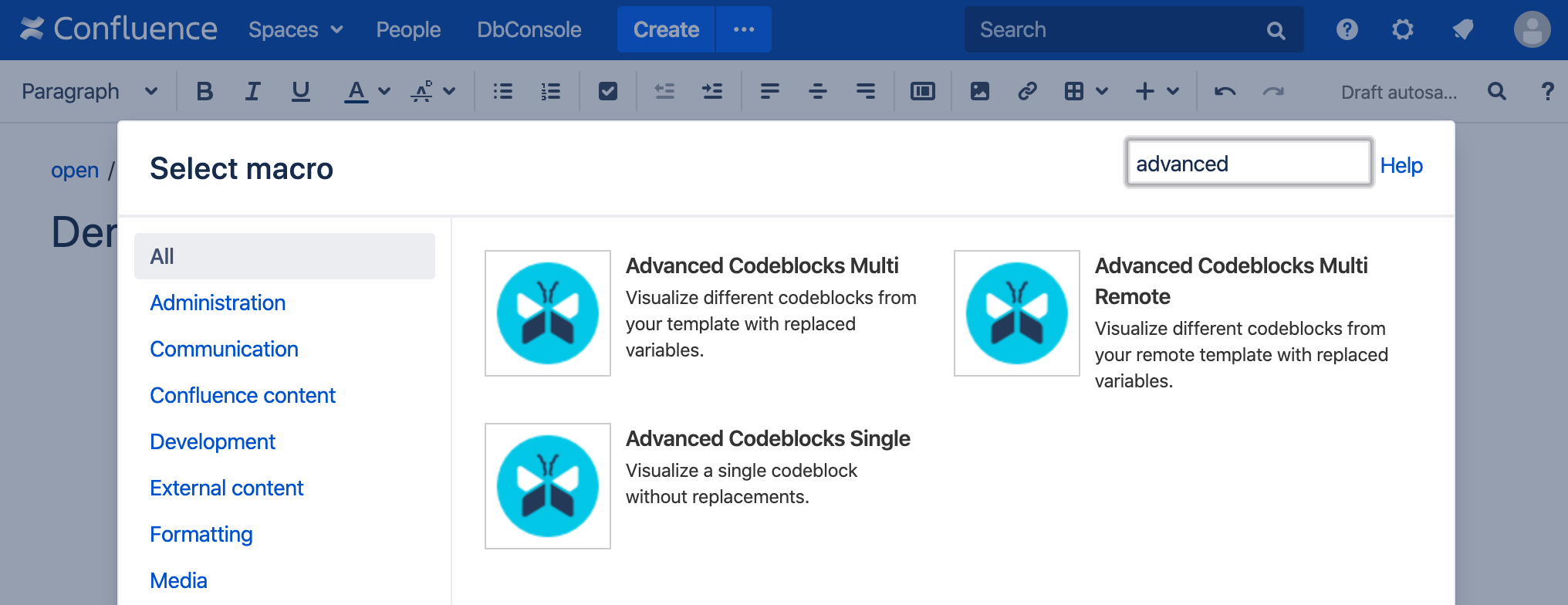
Create your first codeblocks with the Multi Macro
To create your first codeblocks, follow the steps above and:
Choose the Advanced Codeblocks Multi Macro.
You will get to the Insert Advanced Codeblocks Multi screen where you can adjust the parameters.
For the beginning we assign our codebox the Title
My first codeblocksand enable Show Download Links.Click on Insert.
In the preview you see a message that you have to feed the Advanced Codeblocks Multi with content. This will happen in the next step.
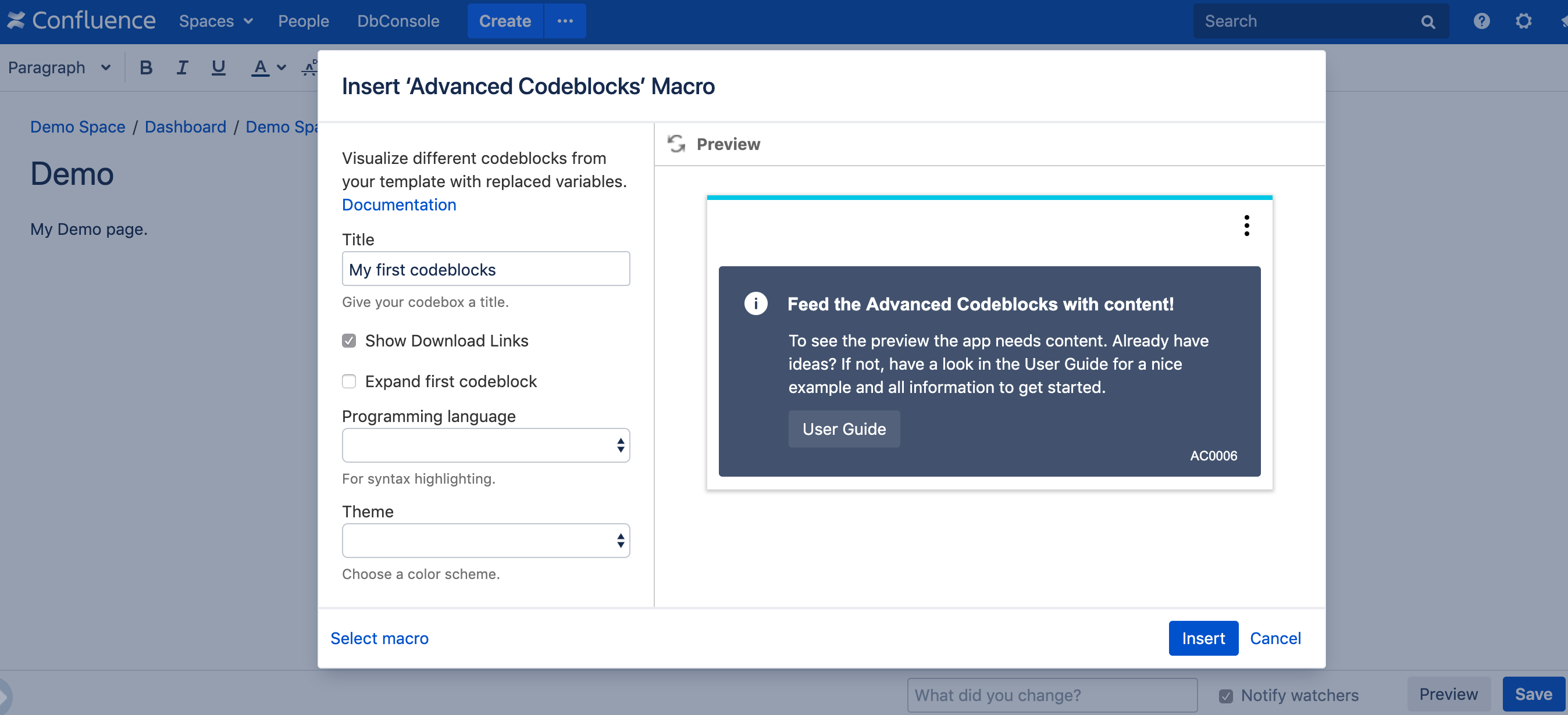
Now you get back to your Confluence Page with the inserted Advanced Codeblocks Multi Macro. The codebox body is still empty so we're going to feed it with some content.
Copy the following code "My first codeblocks" and paste it into the macro body.
Click on Save.
The output will be a codebox with two codeblocks testsystem 1 and testsystem 2.
[testsystem 1]
server.domain = www.myserver1.com
document.root = /www/server1
[testsystem 2]
server.domain = www.myserver2.com
document.root = /www/server2

[content]
Listen 80
<VirtualHost *:80>
   ServerName ${server.domain}
   DocumentRoot "${document.root}"
</VirtualHost>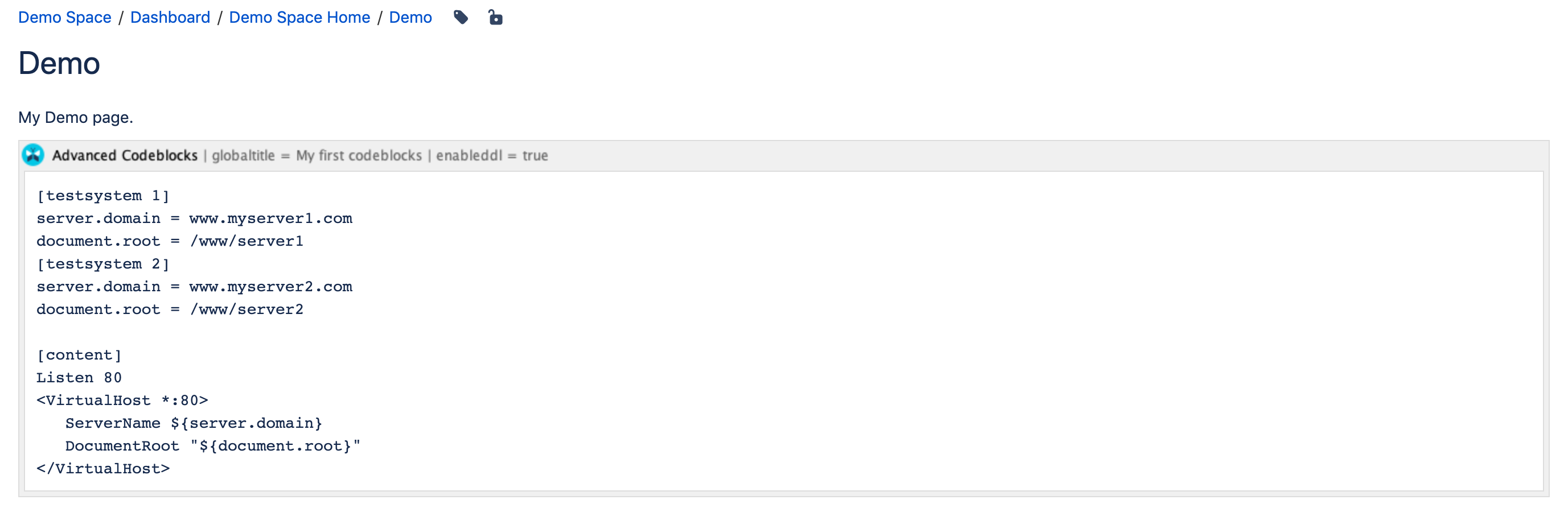

Create a single codeblock with the Single Macro
To create your first single codeblock, follow the steps above and:
Choose the Advanced Codeblocks Single.
You will get to the Insert Advanced Codeblocks Single screen where you can adjust the parameters.
For the beginning we assign our codebox the Title
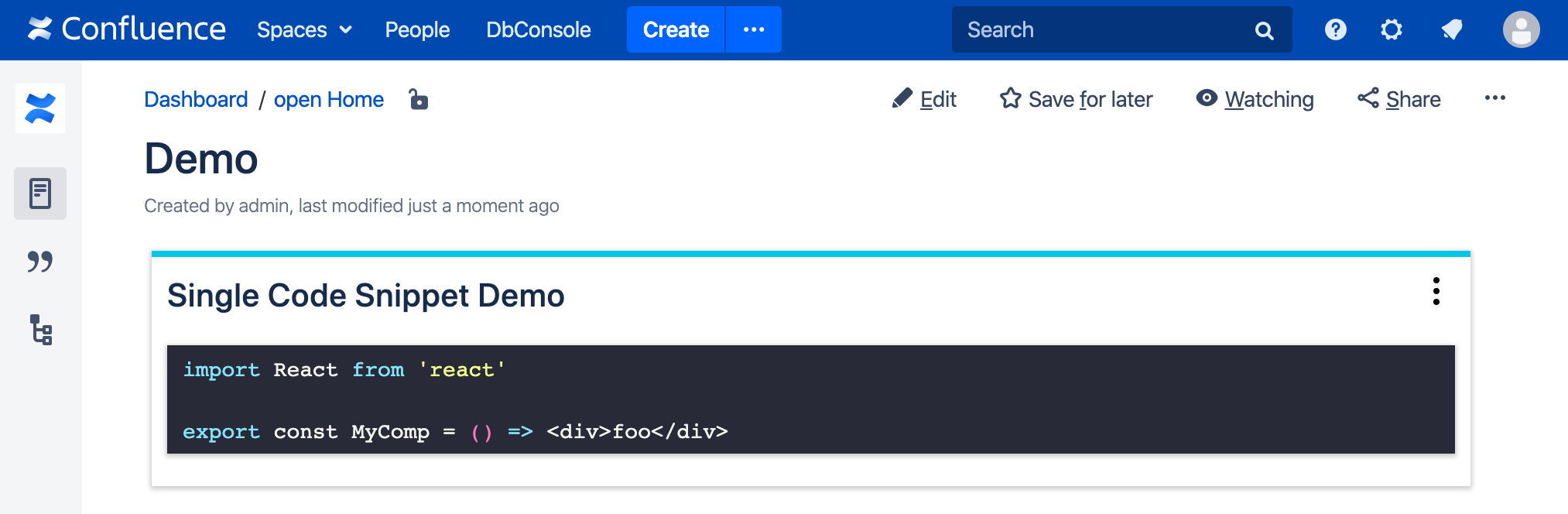
Single Code Snippet Demoand enable Show Download Links.Also do we select the Theme called
dark-spring.Click on Insert.
In the preview you see a message that you have to feed the Advanced Codeblocks with content. This will happen in the next step.

Now you get back to your Confluence Page with the inserted Advanced Codeblocks Single Macro. The codebox body is still empty so we're going to feed it with some content.
Copy the following code "Single Code Snippet Demo" and paste it into the macro body.
Click on Save.
The output will be a codebox with a single codeblock import React ....
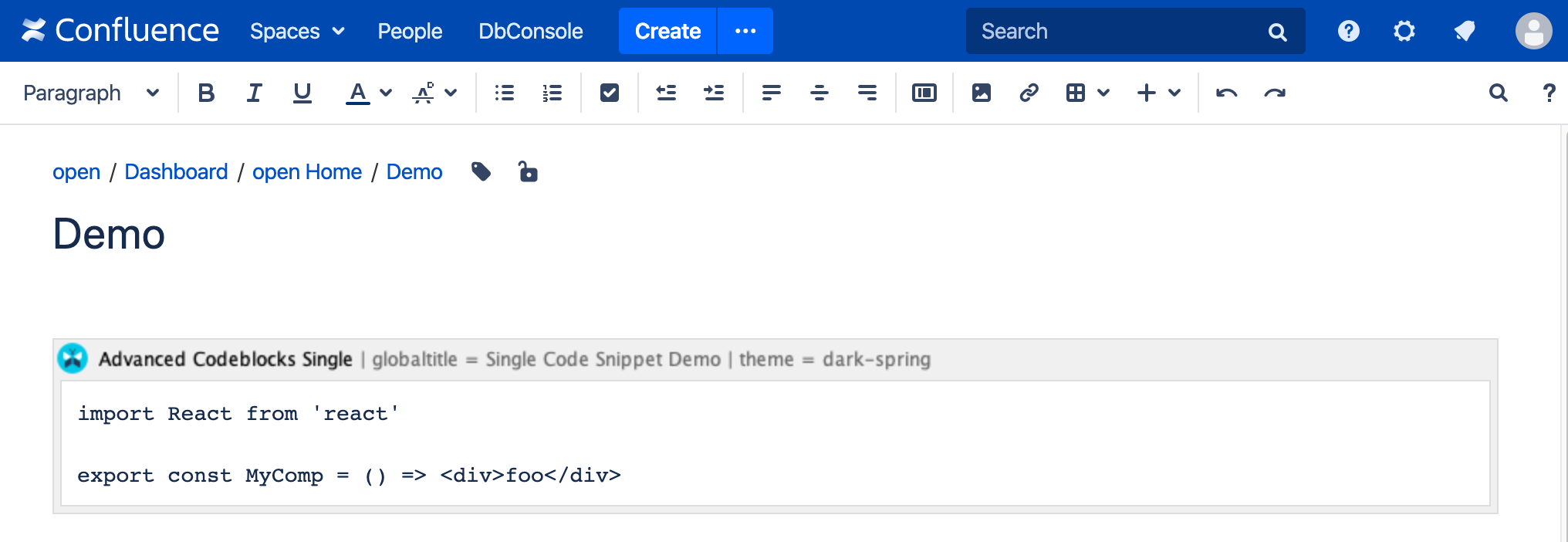
Celebrate!
Congratulations. You have created your first codebox with two codeblocks and variable replacements (Multi) and a codebox with a single code snippet (Single) and can now explore the user interface.
 Data Center versions
  Cloud version